To ensure students meet the graduation requirement for certifications, please upload your certificate after obtaining it to secure your rights.
(The Certificate Section is at the bottom of this page, please pay attention!)
1. Click "Enter Certificate Section"
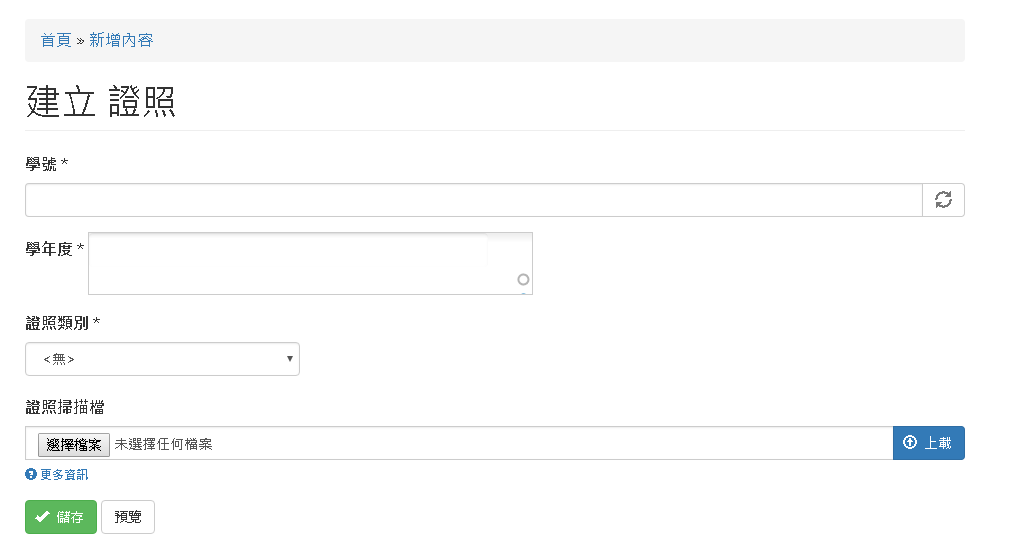
2. First, enter your student ID to check whether you have uploaded it. If not, please click Submit Certificate Information to upload your certificate.
3. Fill in the items as listed above. Enter the "academic year of the certificate exam" for Academic Year, upload the certificate image, and click "Save" to complete the upload.
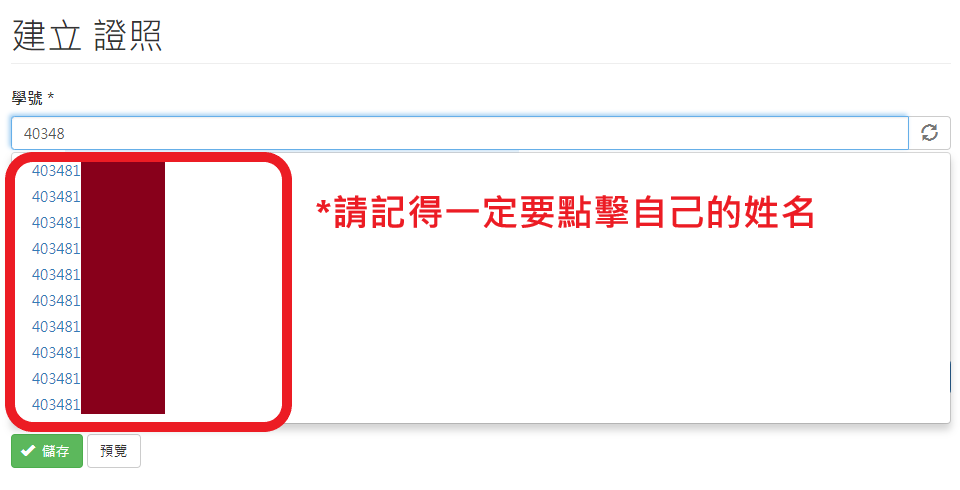
4. Be careful when entering your student ID! When your name appears, remember to click your name to avoid review failure.
Q&A Notes
Q1: Can I upload certificates obtained before enrollment?
A1: Starting from Academic Year 111, certificates must be obtained during your enrollment period. Please refer to course standards for certificate types.
Q2: Why can't I immediately find the certificate after uploading?
A2: After uploading, the department will review all certificates at a unified time (usually in May each year, depending on official announcements). Please be patient. (If you upload after the unified review time, send an email to the department for assistance.)
Q3: Why can't I see my certificate on the website after the review period?
A3: Possible reasons for missing certificate display include:
(1) The department was not notified for review.
(2) Department workload is high, causing review delays.
(3) Uploaded information is incomplete, failing review and being deleted.
(4) Uploaded image must be a copy of the certificate; otherwise, the record will be deleted.
Q4: Why can't I upload even though the image size does not exceed the limit?
A4: The exact cause of the system error is unknown. If multiple attempts fail, please contact the department office. Thank you!
Q5: Will the department proactively notify me of the review results?
A5: Due to the department’s workload, notifications are not sent proactively. If you have questions, please contact the department office.
Q6: If I don’t have the certificate on hand, can I upload a payment receipt or transcript?
A6: The certificate platform provides downloadable certificate copies. Only the certificate is accepted; other documents are not allowed.
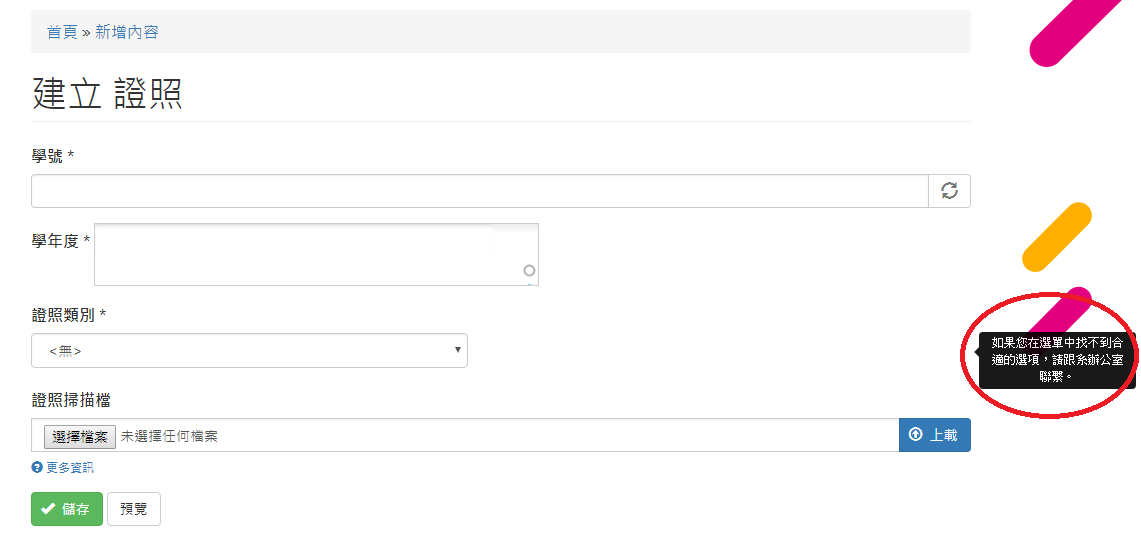
Q7: What should I do if I can't find the certificate category?
A7: Students, did you notice the message on the upload interface? Here's a screenshot for reference:
If you have any questions, please contact the department office. Thank you!